
You are using an out of date browser. It may not display this or other websites correctly.
You should upgrade or use an alternative browser.
You should upgrade or use an alternative browser.
Solved How to Throw
- Thread starter Grit
- Start date
Question that is answered or resolved.

Grit
Well-known member
Noted.And a random tip: Avoid posting using exclamation point. Things like "is there a wiki for using it Yet!" They end up sounding badly.
DBH posted a number of tutorials that help me with Openborstats when I got started and that more or less 3 months ago!Going to an outdated tool like Openborstats is a bad idea
Everything I done so far for my project was done in stats.
It served it's purpose as a foundation to build upon when moving on to something like CMT.
So personally it ain't a bad idea.
If you have a better way to go about developing a game for Openbor then I'm all ears.
This is a hobby for me.
There something cool about seeing your ideas come to life on screen.

Die_In_Fire
Well-known member
already answered, use CMT.If you have a better way to go about developing a game for Openbor then I'm all ears.
I personally use notepad++. I only use other program when I need to check boxes.
Grit
Well-known member
I too used notepad since would just restart the the game and see the changes done but I'll using it going forward.already answered, use CMT.
I personally use notepad++. I only use other program when I need to check boxes.

maxman
Well-known member
I have a better idea after I was surprised about the Y part of position allowing 0 without causing grabbed entities to drop on the ground before slamming. But I'm using v3 6391 which works completely fine, better than some previous versions I used which resulted them to drop before being thrown or grabbed.
About binding targets, this is where to start binding. Go to the Bindings tab. You can checkmark the box of Show Entity label before or after you choose a model from Entity Model. In that selected box of Entity Model, you see a given list of models from models.txt, which you can choose from. You choose which model you're going to bind as an idea. Select its animation and see which animation has for the falling part. (Mine is fall7.) In binding settings, toggle the green plus box to enable its settings. Then position it to wherever you think that model's gonna be bound. After finding certain values you want, you type in the given values of the position you are going to use, like,
position {frame} {x} {y} {z} {direction/facing}
You change frame from a given animation of the model. Move its position anywhere you want. Plus, you can change its facing/direction. Its facing value is like forcedirection here.

In case you're confused about the enemy's offset position in the bindings, just look at its offset here.
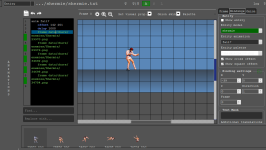
This is where the entity's animation with offset comes from, and you look at the cross/square offset too if it's checkmarked.
About binding targets, this is where to start binding. Go to the Bindings tab. You can checkmark the box of Show Entity label before or after you choose a model from Entity Model. In that selected box of Entity Model, you see a given list of models from models.txt, which you can choose from. You choose which model you're going to bind as an idea. Select its animation and see which animation has for the falling part. (Mine is fall7.) In binding settings, toggle the green plus box to enable its settings. Then position it to wherever you think that model's gonna be bound. After finding certain values you want, you type in the given values of the position you are going to use, like,
@cmd position 0 -39 0 0 1 in your code. This is how position is set like.position {frame} {x} {y} {z} {direction/facing}
You change frame from a given animation of the model. Move its position anywhere you want. Plus, you can change its facing/direction. Its facing value is like forcedirection here.
forcedirection {dir}
- If this command is declared, opponents hit by attackbox will face specific direction instead of facing entity.
- 0 = no effect (used to turn off forcedirection).
- -2 = Left. It means always left no matter where opponent is hit.
- -1 = opposite of entity.
- 1 = same direction of entity.
- 2 = Right. It means always right no matter where opponent is hit.
- Use this command with an attackbox of course.
In case you're confused about the enemy's offset position in the bindings, just look at its offset here.
This is where the entity's animation with offset comes from, and you look at the cross/square offset too if it's checkmarked.
What tool is this?I have a better idea after I was surprised about the Y part of position allowing 0 without causing grabbed entities to drop on the ground before slamming. But I'm using v3 6391 which works completely fine, better than some previous versions I used which resulted them to drop before being thrown or grabbed.
About binding targets, this is where to start binding. Go to the Bindings tab. You can checkmark the box of Show Entity label before or after you choose a model from Entity Model. In that selected box of Entity Model, you see a given list of models from models.txt, which you can choose from. You choose which model you're going to bind as an idea. Select its animation and see which animation has for the falling part. (Mine is fall7.) In binding settings, toggle the green plus box to enable its settings. Then position it to wherever you think that model's gonna be bound. After finding certain values you want, you type in the given values of the position you are going to use, like,@cmd position 0 -39 0 0 1in your code. This is how position is set like.
position {frame} {x} {y} {z} {direction/facing}
You change frame from a given animation of the model. Move its position anywhere you want. Plus, you can change its facing/direction. Its facing value is like forcedirection here.
View attachment 10105
In case you're confused about the enemy's offset position in the bindings, just look at its offset here.
View attachment 10106
This is where the entity's animation with offset comes from, and you look at the cross/square offset too if it's checkmarked.

What tool is this?


Powerful visual editing tool for creating OpenBOR powered projects.
DC